Metronome and count-in
The Auto metronome track plays a click on the song's own beats, detected when the song was added. It follows the timing of the recording, including tempo changes, instead of a fixed tempo. It's a track in the mixer, like the stems.
Beat detection is most reliable on songs in 4/4 with a steady tempo. It often works on songs with tempo or time signature changes too, but not always.
Beat grid
Click ⋮ on the Auto metronome track to change how the beats are placed.
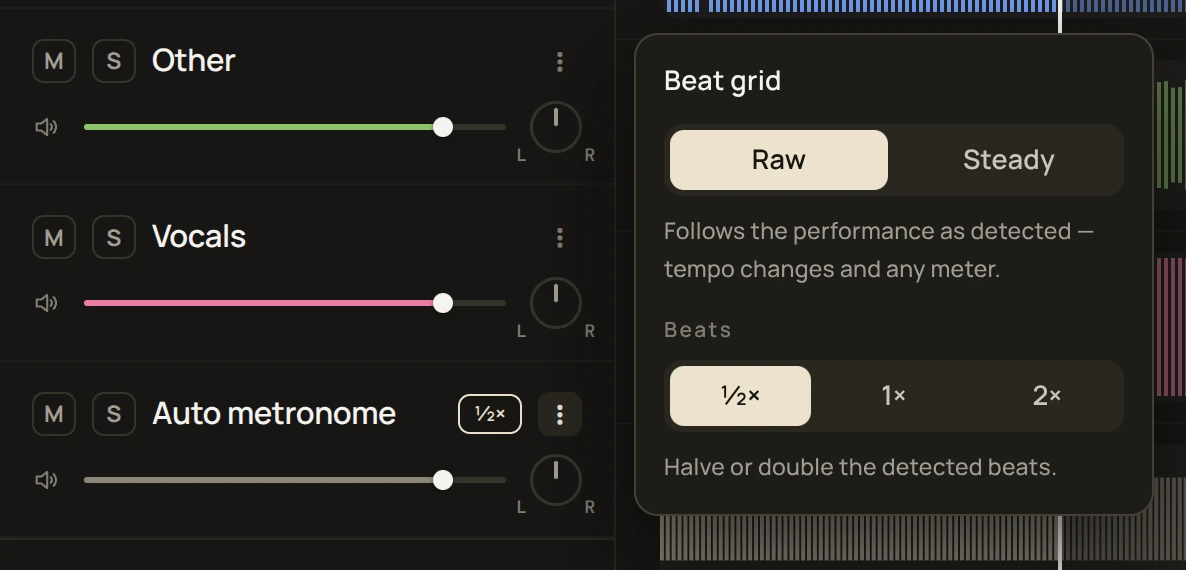
- Raw: follows the performance as detected, including tempo changes and any time signature.
- Steady: locks the beats to an even tempo in 3/4 or 4/4 bars. Use it for songs with a constant tempo. It can drift on songs that speed up, slow down or change time signature.
- Beats: ½× halves and 2× doubles the number of clicks, for when the detected beat is twice as fast or slow as the one you count.
The track shows Steady, ½× or 2× next to its name when these are set.
The beat grid also sets where loop points, section edges and the start point snap, and how far −1 beat and +1 beat move.
Count-in
The count-in plays metronome clicks before playback, at the song's tempo where playback begins.
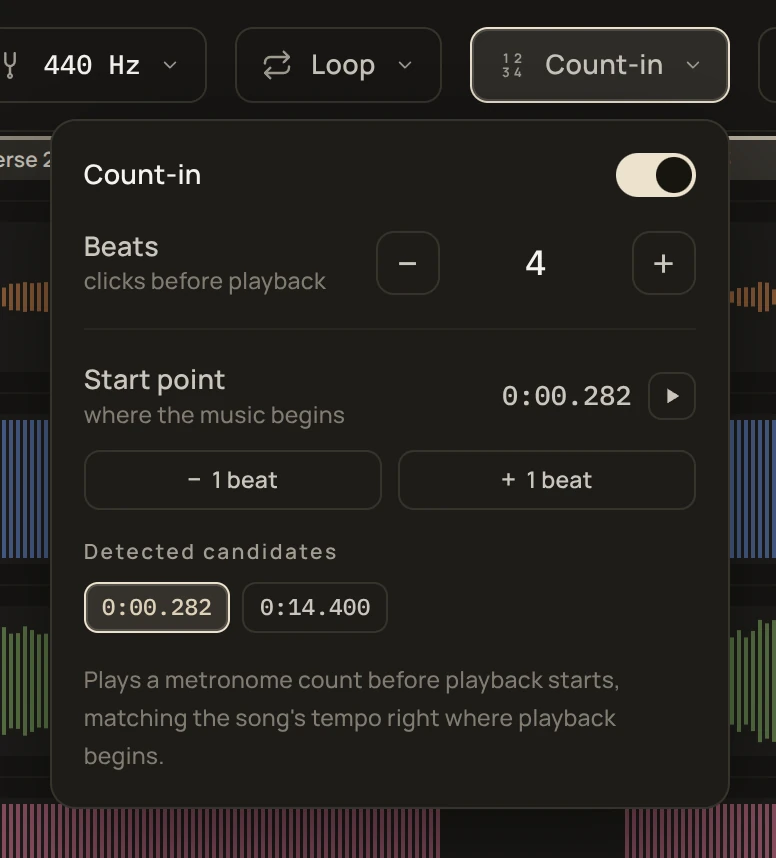
In the Count-in menu, Beats sets the number of clicks, from 1 to 8. The default is 4.
Start point
The start point is where the music begins in the file, for songs that start with silence or noise. unmxr detects it and marks it with a flag on the section band. Set it in the Count-in menu:
- −1 beat and +1 beat move it one beat at a time.
- Detected candidates lists other possible start points. Click one to use it.
- The play button plays from the start point, so you can check it.
- Reset goes back to the detected start point.
You can also drag the flag on the section band. It snaps to the beat; hold Option (Mac) or Alt (Windows) to place it freely. Right-click it and choose Reset to detected to undo your change.
The start point is also used by Export with Only from the start position.