Loops and sections
Loop a hard part to practice it, and slow it down with the tempo control if you need to.
Looping a section
The band above the waveforms shows the song's sections: intro, verse, chorus and so on.
- Click a section to jump to its start.
- Double-click a section to loop it.
- While a loop is on, click another section to move the loop there.
The switch in the Loop menu loops the practice region or section under the playhead.
Fixing the sections
Sections are detected automatically and can be wrong. Right-click a section to rename, split, merge or delete it. Rename offers the standard names (intro, verse, chorus, bridge, solo, inst, break, outro), or you can type your own. Restore detected sections undoes all your section edits.
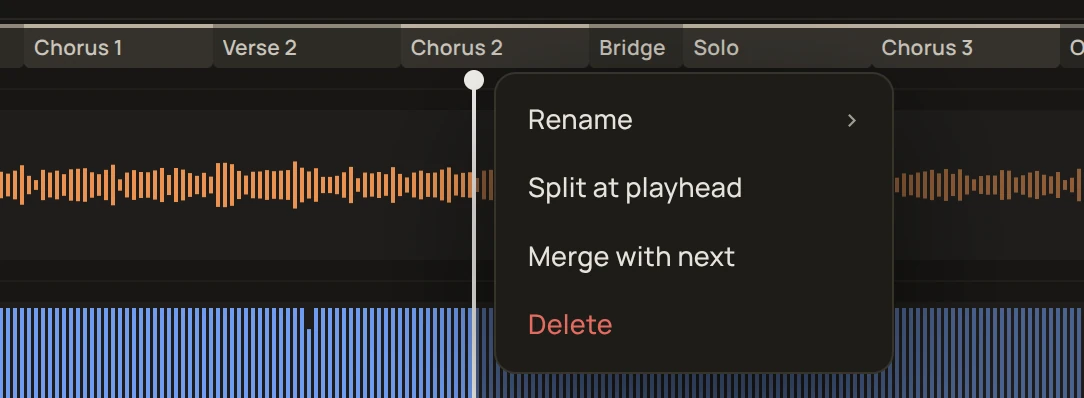
Drag the edge between two sections to move it. Your edits are saved with the song.
Adjusting the loop
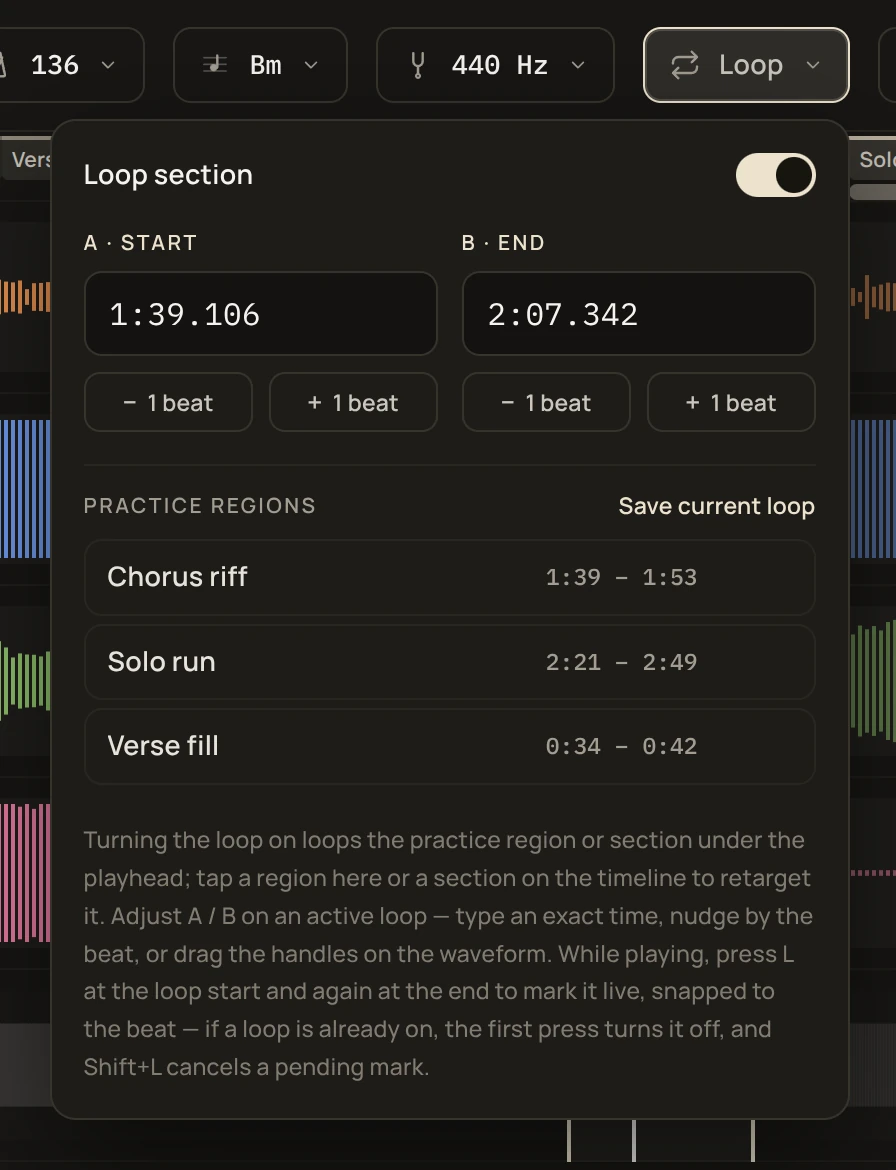
A loop runs from point A to point B. Moving them doesn't change the sections. On an active loop, you can:
- move A or B one beat at a time with −1 beat and +1 beat in the Loop menu,
- drag the A and B handles on the waveform,
- type an exact time in the A · START and B · END fields.
Loop handles and section edges snap to a nearby beat. Hold Option (Mac) or Alt (Windows) while dragging to place them freely.
Marking a loop while playing
- Press L where the loop should start.
- Press L again where it should end. The loop starts right away.
If a loop is already on, the first L turns it off. Shift + L cancels a mark you've started and clears the loop.
Inside a loop, skipping 10 seconds back or forward past the loop's edge jumps to the loop's start.
Practice regions
A practice region is a saved loop. To save one, click Save current loop in the Loop menu. Saved regions are listed there and also appear as bars under the section band. Click one in either place to loop it.
Practice regions are saved with the song, but the active loop isn't. It's off when you open the song again.